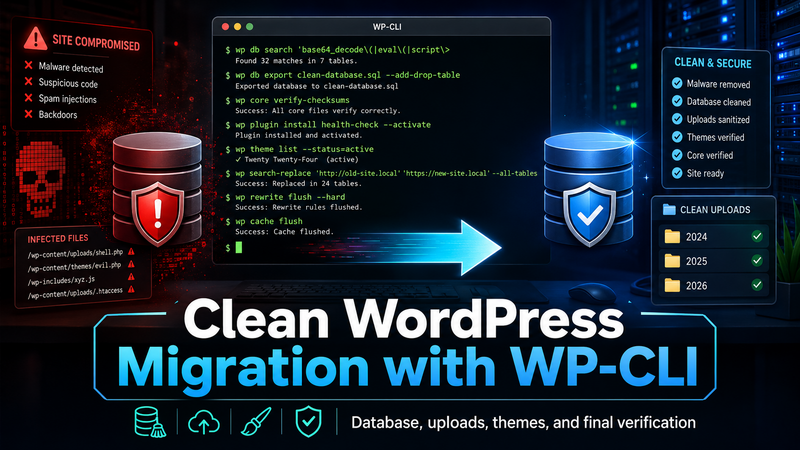
When a #wordpress website has been compromised, simply deleting a suspicious file or installing a security plugin may not be enough. Malware can exist in WordPress core files, plugins, themes, uploads, database options, posts, comments, scheduled events, and other locations.
One of the safest approaches is to preserve only the data that must survive, clean that data thoroughly, and move it into a completely fresh WordPress installation.
This guide shows how to accomplish that using #wpcli and standard Linux commands.
The basic strategy is:
- Back up the existing website.
- Inspect and clean the database.
- Keep only legitimate media files.
- Inspect any custom theme that must be retained.
- Discard the old WordPress core.
- Discard old plugin files.
- Install WordPress fresh on the new server.
- Install plugins from clean sources.
- Import the cleaned database.
- Import sanitized uploads.
- Verify everything again.
Install WP-CLI
WP-CLI is a command-line interface for WordPress. It allows you to inspect and manage WordPress without relying on the WordPress dashboard.
First download WP-CLI:
curl -O https://raw.githubusercontent.com/wp-cli/builds/gh-pages/phar/wp-cli.pharTest it:
php wp-cli.phar --infoMake it executable:
chmod +x wp-cli.pharMove it somewhere available system-wide:
sudo mv wp-cli.phar /usr/local/bin/wpNow verify:
wp --infoOnce installed, go to the WordPress document root before running WordPress commands:
cd /path/to/wordpressConfirm You Are Working On The Correct Website
This is extremely important, especially when multiple servers or sites are involved.
Check the site URL:
wp option get siteurlAlso check:
wp option get homeYou should confirm these values before deleting, resetting, importing, or modifying anything.
Back Up The Database Before Cleaning Anything
Always create a database backup first:
wp db export ~/wordpress-pre-clean.sqlThe tilde ~ places the file in your Linux user's home directory.
Verify that it exists:
ls -lh ~/wordpress-pre-clean.sqlSearch The Database For Known Malware
WP-CLI can search every text field in the WordPress database.
For example:
wp db search "String.fromCharCode" --all-tables-with-prefixwp db search "new Function" --all-tables-with-prefixwp db search "GetStyles" --all-tables-with-prefixYou can also search for known spam domains, gambling terms, pharmaceutical spam domains, or other indicators discovered during an investigation.
wp db search "suspicious-domain.example" --all-tables-with-prefixWP-CLI may produce warnings such as:
Warning: No text columns for table ... skipped.
Warning: No primary key for table ...
Those warnings do not necessarily indicate a problem. They simply mean WP-CLI could not search that table in the normal way.
Do Not Automatically Delete Every Script
A command such as:
wp db search "<script" --all-tables-with-prefixcan produce many legitimate results.
WordPress sites commonly contain legitimate JavaScript for:
- Google Analytics
- Google Tag Manager
- Constant Contact
- conversion tracking
- structured data
- advertising
- payment gateways
Never assume that every script tag is malware.
Inspect Suspicious WordPress Options
If WP-CLI identifies a suspicious value inside wp_options, find the actual option name before deleting anything.
wp db query "
SELECT option_id, option_name, LEFT(option_value,500)
FROM wp_options
WHERE option_value LIKE '%SUSPICIOUS_TEXT%';
"
If an option is positively identified as malicious, delete it through WordPress:
wp option delete OPTION_NAMEThis is generally preferable to blindly deleting database rows.
Be Careful With Serialized Data
Many WordPress options contain PHP serialized data.
A serialized value may look something like:
a:3:{s:4:"name";s:8:"example";...}Do not blindly use SQL REPLACE() against serialized data. PHP serialization stores string lengths. Altering a string without updating its recorded length can corrupt the entire option.
Inspect Suspicious Posts And Pages
If a database search reports a suspicious WordPress post ID, inspect it:
wp post get 123 --fields=ID,post_title,post_type,post_status,post_date,post_modifiedThen display the content:
wp post get 123 --field=post_contentOr save it to a temporary file:
wp post get 123 --field=post_content > /tmp/post123.txtInspect it:
less /tmp/post123.txtMalicious JavaScript may appear as heavily obfuscated code involving functions such as:
String.fromCharCode
eval()
new Function()
atob()
TextDecoder
fetch()
These functions can also be used legitimately, but heavily obfuscated code that downloads and executes remote JavaScript deserves immediate investigation.
Clean An Injected Page Without Destroying The Legitimate Content
If a legitimate page contains an injected block, do not necessarily delete the entire page.
Create a clean replacement file:
cat > /tmp/page-clean.html <<'EOF'
LEGITIMATE PAGE CONTENT HERE
EOF
Then update the page:
wp post update PAGE_ID --post_content="$(cat /tmp/page-clean.html)"Verify:
wp post get PAGE_ID --field=post_contentRemove Spam Comments
List comments already identified as spam:
wp comment list --status=spam --fields=comment_ID,comment_author,comment_dateAttackers and automated scanners may submit comments containing:
- gambling spam
- pharmaceutical spam
- adult content
- SEO backlink spam
- SQL injection probes
- automated vulnerability scans
SQL injection probes may contain strings such as:
PG_SLEEP(15)
waitfor delay
DBMS_PIPE.RECEIVE_MESSAGE
sleep(15)
If the comments are clearly spam, remove all comments currently marked as spam:
wp comment delete $(wp comment list --status=spam --format=ids) --forceCheck Trash as well:
wp comment list --status=trash --fields=comment_ID,comment_author,comment_dateDelete trashed comments:
wp comment delete $(wp comment list --status=trash --format=ids) --forceClear WordPress Transients
Transient data is temporary and generally does not need to be migrated.
wp transient delete --allThis can remove hundreds or thousands of temporary database records.
If necessary, site transients can also be removed directly:
wp db query "
DELETE FROM wp_options
WHERE option_name LIKE '_transient_%'
   OR option_name LIKE '_site_transient_%';
"
Check WordPress Administrator Accounts
A compromised WordPress site may contain an unauthorized administrator account.
wp user list --role=administratorYou can also inspect all users:
wp user list --fields=ID,user_login,user_email,user_registered,rolesRemove an unauthorized account only after confirming that it is not legitimate.
Check WordPress Cron Events
Malware can establish persistence through WordPress scheduled events.
wp cron event listLook for unfamiliar hook names that do not correspond to WordPress, WooCommerce, or known plugins.
Verify WordPress Core
WP-CLI can compare WordPress core against official checksums:
wp core verify-checksumsA clean installation should report:
Success: WordPress installation verifies against checksums.When performing a clean server migration, however, I prefer not to copy the old WordPress core at all.
Install WordPress fresh on the destination server instead.
Verify Plugin Checksums
For plugins available from WordPress.org:
wp plugin verify-checksums --allYou may see warnings when WP-CLI cannot retrieve checksums for:
- commercial plugins
- custom plugins
- abandoned plugins
- plugins not hosted by WordPress.org
A checksum mismatch deserves investigation.
A result such as:
Checksum does not match
File was added
means that the installed plugin differs from the official release.
Do Not Copy Old Plugin Directories To The New Server
When rebuilding a compromised site, one of the safest practices is:
DO NOT COPY wp-content/pluginsInstall fresh plugins instead:
wp plugin install woocommerce --activateMultiple plugins can be installed together:
wp plugin install \
woocommerce \
classic-editor \
classic-widgets \
wp-mail-smtp \
--activate
Only install plugins the site actually needs.
Do not blindly reinstall every plugin from the old server.
Inventory Existing Plugins
Before rebuilding, save the old plugin list:
wp plugin listReview it carefully.
Plugins that are obsolete, abandoned, suspicious, duplicated, or no longer needed should be omitted from the fresh installation.
Inspect Uploads
The WordPress uploads directory should mostly contain media files.
Find PHP and executable-style files:
find wp-content/uploads -type f \( \
-iname "*.php" -o \
-iname "*.php3" -o \
-iname "*.php4" -o \
-iname "*.php5" -o \
-iname "*.php7" -o \
-iname "*.phtml" -o \
-iname "*.phar" \
\) -print
Plugin-generated directories may legitimately contain small index.php files, but dated WordPress media directories generally should not contain executable PHP.
Scan Only The Year-Based Media Directories
WordPress normally stores media like this:
wp-content/uploads/
2018/
2019/
2020/
2021/
2022/
2023/
2024/
2025/
2026/
If only the media library needs to survive, you can ignore plugin-generated directories entirely.
Check dated directories for PHP:
find wp-content/uploads/20* -type f \( \
-iname "*.php" -o \
-iname "*.phtml" -o \
-iname "*.phar" -o \
-iname "*.php5" \
\) -print
A clean result should return nothing.
Search Uploads For Known Malware Signatures
grep -RniIE \
'String\.fromCharCode|GetStyles|new Function|base64_decode|gzinflate|eval\(' \
wp-content/uploads/20*
If you have identified specific malicious domains, include those in the search.
Search For PHP Hidden Inside Other Files
Attackers sometimes disguise executable content with another extension.
grep -RIl --binary-files=without-match "<?php" wp-content/uploadsCheck Whether Images Are Really Images
You can inspect MIME types with the Linux file command:
find wp-content/uploads -type f \( \
-iname "*.jpg" -o \
-iname "*.jpeg" -o \
-iname "*.png" -o \
-iname "*.gif" -o \
-iname "*.webp" \
\) -exec file {} \;
A file named picture.jpg that is actually PHP or HTML deserves investigation.
Keep Only The Dated Upload Folders
Create a clean uploads directory:
mkdir -p ~/clean-uploadsCopy only year-based directories:
cp -a wp-content/uploads/20* ~/clean-uploads/Verify:
ls -lh ~/clean-uploadsArchive The Clean Uploads
cd ~
tar -czf wordpress-uploads-clean.tar.gz clean-uploads
Inspect Custom Themes Before Migrating Them
If the website uses a custom child theme, that theme may need to survive the migration.
Do not automatically trust it just because you created it originally. A compromised server can modify legitimate custom files.
Search the theme:
grep -RniE \
'eval\(|base64_decode|gzinflate|str_rot13|shell_exec|fromCharCode|new Function' \
wp-content/themes/YOUR-THEME
Look For Abnormally Long PHP Or JavaScript Lines
Obfuscated malware is frequently inserted as one enormous line.
find wp-content/themes/YOUR-THEME \
-type f \( -name "*.php" -o -name "*.js" \) \
-exec awk '
length($0) > 2000 {
    print FILENAME ":" FNR ": " length($0) " characters"
}' {} +
A clean result often produces no output.
Search Themes For Suspicious Remote Execution
grep -RniE \
'fetch\(|atob\(|document\.write|document\.createElement|window\.location|iframe|curl_exec|file_get_contents.*http' \
wp-content/themes/YOUR-THEME
Not every result is malicious. For example, Google Tag Manager commonly uses an iframe inside a <noscript> element.
Inspect results rather than automatically deleting them.
Check Child Theme Parent
Inspect the beginning of the child theme's style.css:
head -30 wp-content/themes/YOUR-THEME/style.cssA Twenty Twenty-One child theme should contain something similar to:
/*
Theme Name: Custom Theme
Template: twentytwentyone
*/
On the new server, install the parent fresh:
wp theme install twentytwentyoneArchive The Clean Custom Theme
cd wp-content/themes
tar -czf ~/custom-theme-clean.tar.gz YOUR-THEME
Export The Cleaned Database
After cleaning comments, malicious content, and temporary data:
wp db export ~/wordpress-clean.sqlYou should now have three migration artifacts:
wordpress-clean.sql
wordpress-uploads-clean.tar.gz
custom-theme-clean.tar.gz
Create A Fresh WordPress Installation On The New Server
Do not copy:
wp-admin/
wp-includes/
wp-content/plugins/
old wp-config.php
old root PHP filesThe new installation should contain clean copies of:
wp-admin
wp-includes
WordPress root PHP files
#transfer Files With SCP
From the destination server:
scp USER@OLD_SERVER:~/wordpress-clean.sql .scp USER@OLD_SERVER:~/wordpress-uploads-clean.tar.gz .scp USER@OLD_SERVER:~/custom-theme-clean.tar.gz .Extract The Custom Theme
If the archive is located in the current web directory:
tar -xzf custom-theme-clean.tar.gz -C wp-content/themes/Extract Clean Uploads
mkdir -p wp-content/uploadstar -xzf wordpress-uploads-clean.tar.gz \
-C wp-content/uploads \
--strip-components=1Verify:
ls -lh wp-content/uploadsYou should see only the year directories you intentionally retained.
Replace The Fresh WordPress Database
This command is destructive.
Make absolutely certain that you are on the NEW server before running:
wp db reset --yesThen import the cleaned database:
wp db import wordpress-clean.sqlVerify The Imported Site URL
wp option get siteurlwp option get homeBoth should point to the intended website.
Install The Parent Theme
If your custom theme is based on Twenty Twenty-One:
wp theme install twentytwentyoneCheck themes:
wp theme listActivate the child theme:
wp theme activate YOUR-THEMEThe theme list should identify Twenty Twenty-One as the parent.
Install Plugins Fresh
Do not copy plugins from the compromised server.
Install required plugins directly from trusted sources.
Example:
wp plugin install \
woocommerce \
classic-editor \
classic-widgets \
wp-mail-smtp \
--activate
Add plugins in small batches and check the site after each batch.
Check Plugin Status
wp plugin listThis makes it much easier to identify which plugin causes an error if something breaks.
Verify WooCommerce Pages
For WooCommerce stores, verify that the imported database still contains its page assignments.
Shop:
wp option get woocommerce_shop_page_idCart:
wp option get woocommerce_cart_page_idCheckout:
wp option get woocommerce_checkout_page_idThen inspect each page:
wp post get PAGE_ID --fields=ID,post_title,post_status,post_typeTypical classic WooCommerce page content includes:
[woocommerce_cart]and:
[woocommerce_checkout]Run The Final Database Malware Sweep
Once the new installation is operational, repeat the database searches.
wp db search "String.fromCharCode" --all-tables-with-prefixwp db search "new Function" --all-tables-with-prefixwp db search "GetStyles" --all-tables-with-prefixAlso repeat searches for any domains or signatures discovered during the original investigation.
Run The Final Uploads Scan
grep -RniIE \
'String\.fromCharCode|GetStyles|new Function|base64_decode|gzinflate|eval\(' \
wp-content/uploads
Check for PHP again:
find wp-content/uploads -type f \( \
-iname "*.php" -o \
-iname "*.phtml" -o \
-iname "*.phar" \
\) -print
Verify WordPress Core One Last Time
wp core verify-checksumsThe desired result is:
Success: WordPress installation verifies against checksums.Create A Known-Good Backup
Once the new installation has been cleaned and verified, create a new backup immediately.
Database:
wp db export ~/wordpress-clean-final.sqlTheme and uploads:
tar -czf ~/wordpress-clean-files-final.tar.gz \
wp-content/themes/YOUR-THEME \
wp-content/uploads
This gives you a known-good recovery point before the website returns to normal traffic.
Important: Change Credentials After A Compromise
A clean filesystem and database are only part of the recovery process.
After a confirmed compromise, change credentials associated with the website, including where appropriate:
- WordPress administrator passwords
- hosting control panel passwords
- SSH passwords or keys
- FTP/SFTP passwords
- database passwords
- payment gateway API credentials
- SMTP credentials
- Cloudflare/API credentials
- third-party service API keys
Do not assume an attacker only modified WordPress files.
Update WordPress Security Keys And Salts
A fresh installation should also use new WordPress authentication salts.
These are located in wp-config.php:
AUTH_KEY
SECURE_AUTH_KEY
LOGGED_IN_KEY
NONCE_KEY
AUTH_SALT
SECURE_AUTH_SALT
LOGGED_IN_SALT
NONCE_SALT
Replacing these values invalidates existing WordPress login cookies.
Prevent PHP Execution Inside Uploads
On an Apache server, PHP execution can be restricted inside the uploads directory.
Create:
wp-content/uploads/.htaccesswith:
<FilesMatch "\.(php|php3|php4|php5|php7|phtml|phar)$">
    Require all denied
</FilesMatch>
This provides another layer of protection if an executable file is ever uploaded there.
Why A Fresh Rebuild Is Better Than Chasing Malware Forever
When a WordPress installation has been compromised, there may be no practical way to prove that every old PHP file is trustworthy.
Instead of trying to disinfect thousands of files individually, rebuild from known-good sources.
The ideal migration looks like this:
Fresh WordPress Core
        +
Fresh Plugins
        +
Fresh Parent Theme
        +
Audited Custom Child Theme
        +
Sanitized Database
        +
Sanitized Media Uploads
        =
Clean Rebuilt Website
This dramatically reduces the amount of old executable code that must be trusted.
Final WordPress Cleanup Checklist
- WP-CLI installed and working
- Original database backed up
- Known malware signatures searched
- Injected posts/pages repaired
- Spam comments removed
- Unauthorized users checked
- WordPress cron inspected
- Transients removed
- Dated uploads scanned
- No PHP found in dated media directories
- Custom theme inspected
- Suspicious JavaScript removed or rebuilt
- Fresh WordPress installed
- Fresh plugins installed
- Fresh parent theme installed
- Clean database imported
- Clean uploads imported
- Site URL verified
- WooCommerce pages verified
- Database malware searches repeated
- Uploads scans repeated
- WordPress checksums verified
- Credentials changed
- WordPress salts replaced
- Known-good backup created
Conclusion
A WordPress compromise does not necessarily mean that every piece of valuable content must be discarded. Posts, pages, products, orders, customer information, media, and custom development can often be retained safely when they are carefully separated from executable application code.
The key is to stop trusting the old installation as a whole.
Preserve only what you need, inspect it, sanitize it, and place it into a fresh WordPress environment built from trusted sources.
WP-CLI makes this process considerably easier because it allows us to search, inspect, clean, export, import, verify, and rebuild WordPress directly from the command line.
Join the Discussion
Create an account or sign in to leave a comment.