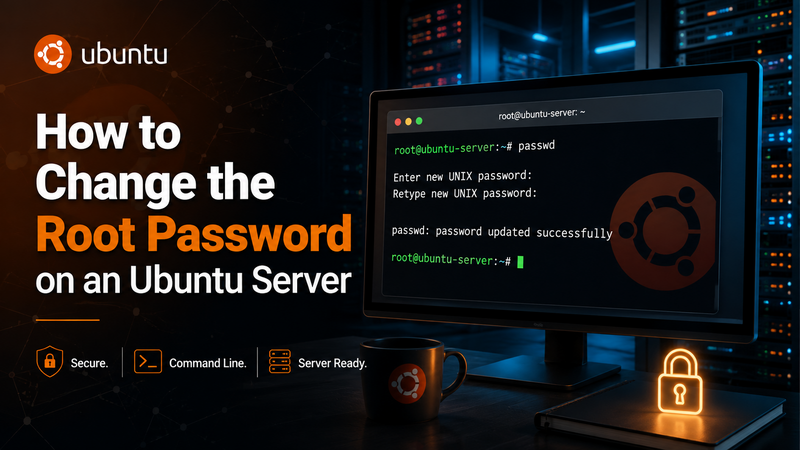
If you are logged into an #Ubuntu server as the root user and need to change the root password, the process is very simple.
Change the Root Password
While logged in as root, enter:
passwdYou will then be prompted to enter the new password:
New password:
Retype new password:
Enter your new password twice.
Linux normally does not display any characters, dots, or asterisks while you are typing a password. This is normal. Just type the password and press Enter.
If the password was changed successfully, you should see something similar to:
passwd: password updated successfullyCheck the Root Account Status
You can check whether the root account currently has a usable password by running:
passwd -S rootYou may see output similar to:
root P 2026-08-17 0 99999 7 -1The important part is the letter following the username.
Pgenerally means the account has a password.Lgenerally means the password is locked.
Changing the Password Does Not Automatically Enable Root SSH Login
This is an important distinction. Setting a root password does not necessarily mean you can log into the server remotely through SSH as root.
Ubuntu servers are commonly configured to restrict or completely disable direct root SSH logins.
You can inspect the SSH setting with:
grep -i "PermitRootLogin" /etc/ssh/sshd_configYou may see something such as:
PermitRootLogin noor:
PermitRootLogin prohibit-passwordWhat These Settings Mean
If SSH is configured with:
PermitRootLogin nothen direct root login through SSH is disabled.
If it is configured with:
PermitRootLogin prohibit-passwordthen root may be permitted to log in using an SSH key, but password-based root login is prohibited.
A Safer Way to Administer an Ubuntu Server
For an Internet-connected server, it is generally better to log in using a normal administrative account and then elevate privileges with sudo.
For example:
ssh maximus@example-server.comThen become root when necessary:
sudo -iThis provides another layer of protection because an attacker cannot simply target the universally known root username with password guesses.
Using SSH Keys Is Even Better
For servers exposed to the Internet, SSH key authentication is generally preferable to password authentication.
A typical secure arrangement is:
- Use a normal administrative user.
- Give that user
sudoprivileges. - Authenticate using an SSH key.
- Disable SSH password authentication after verifying key authentication works.
- Keep direct root SSH login disabled.
Do Not Lock Yourself Out
If you decide to change SSH authentication settings, keep your existing SSH session open while testing a second connection.
Do not close your working session until you have confirmed that you can successfully open another SSH connection.
This is especially important when modifying files such as:
/etc/ssh/sshd_configBefore restarting SSH, you can also check the configuration for syntax errors with:
sshd -tIf the command returns no output, the SSH configuration normally passed the syntax check.
Quick Reference
Change the current root password:
passwdCheck the root password status:
passwd -S rootCheck the root SSH login configuration:
grep -i "PermitRootLogin" /etc/ssh/sshd_configOpen a root shell from a sudo-enabled account:
sudo -iCheck the SSH configuration before restarting the SSH service:
sshd -tConclusion
Changing the root password on Ubuntu only requires the passwd command when you are already logged in as root. However, the root password and SSH root access are two separate things.
For most public servers, a stronger configuration is to use an administrative user with sudo, authenticate with SSH keys, and leave direct root SSH login disabled.
Join the Discussion
Create an account or sign in to leave a comment.