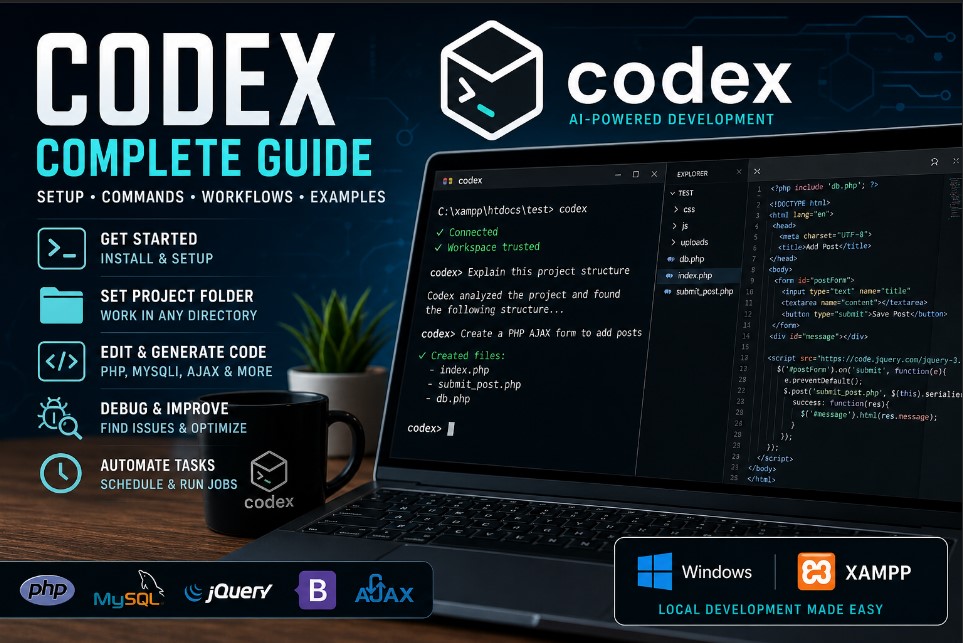
This page is a practical command guide for installing, starting, navigating, and using Codex on a Windows computer with local project folders such as C:\xampp\htdocs.
1. Install Codex
npm install -g @openai/codexCodex CLI is installed with npm and runs locally from your #terminal. It can inspect your project, edit files, and run commands in the selected directory. The first time you run it, you will be prompted to sign in. :contentReference[oaicite:0]{index=0}
2. Upgrade Codex
npm install -g @openai/codex@latest3. Start Codex
codexThis opens Codex in interactive terminal mode.
4. Start Codex with a Prompt
codex "Explain this codebase to me"You can launch Codex and give it an instruction immediately. :contentReference[oaicite:1]{index=1}
5. Go to Your XAMPP htdocs Folder
cd C:\xampp\htdocs6. Go Into a Specific Project Folder
cd C:\xampp\htdocs\testOr, if you are already inside C:\xampp\htdocs:
cd test7. Start Codex Inside a Project Folder
cd C:\xampp\htdocs\test
codex
Codex works on the folder where you started it. If you start it inside C:\xampp\htdocs\test, that becomes the project workspace.
8. Exit Codex
Ctrl + CUse this when you need to leave Codex and change folders.
9. Check Where You Are in PowerShell
pwd10. List Files in the Current Folder
dir11. Create a New Folder
mkdir test12. Run Codex from Command Prompt Instead of PowerShell
cd C:\xampp\htdocs\test
codex
13. Run Codex from VS Code
- Open Visual Studio Code.
- Open your project folder.
- Go to Terminal → New Terminal.
- Run:
codex14. Useful First Prompts
Explain a Project
Explain this project structure and tell me what each main file does.Audit a Project
Audit this PHP project for security issues, bad database handling, and outdated code. Do not change files yet. Give me a prioritized report first.Create a PHP Feature
Create a complete PHP, MySQLi, jQuery AJAX, and Bootstrap 5 Add Post feature. Use prepared statements and JSON responses.Fix a Bug
Find out why this form is not submitting correctly. Trace the frontend JavaScript, PHP handler, and database logic.Refactor Code
Refactor this file for readability, security, and maintainability. Keep the current behavior the same.Convert Queries to Prepared Statements
Find unsafe MySQL queries in this project and convert them to MySQLi prepared statements. Show me diffs before applying each group of changes.Generate Documentation
Create a README.md file that explains how to install, configure, and run this project locally.15. What Codex Can Do
| Task | Example Prompt |
|---|---|
| Explain code | Explain how login works in this project. |
| Edit files | Clean up this PHP file and improve validation. |
| Create features | Build an AJAX comment system using PHP and MySQLi. |
| Debug errors | Find why this AJAX request returns a 500 error. |
| Improve security | Audit this project for SQL injection and XSS issues. |
| Write documentation | Create documentation for this CMS module. |
| Run commands | Run the project tests and summarize failures. |
| Review changes | Review the current Git diff and suggest improvements. |
16. Useful Slash Commands Inside Codex
Codex supports slash commands during interactive sessions. Type / inside Codex to see available commands. These commands help control models, permissions, and session behavior. :contentReference[oaicite:2]{index=2}
| Command Type | Purpose |
|---|---|
/model |
Switch or select the model used by Codex. |
/permissions |
Adjust whether Codex can read, edit, or run commands. |
/ |
Open the slash command menu. |
17. Safety Rules
- Do not run Codex from
C:\Windows\System32. - Run Codex only inside the project folder you want it to work on.
- Use Git before large edits.
- Do not expose passwords, API keys, or live database credentials.
- Review changes before trusting them.
18. Git Safety Checkpoint
git init
git add .
git commit -m "baseline before codex changes"
This gives you a rollback point before Codex modifies files.
19. XAMPP Workflow
| Tool | Purpose |
|---|---|
| Codex | Writes, edits, explains, and refactors files. |
| XAMPP Apache | Runs your PHP project in the browser. |
| XAMPP MySQL | Runs your local database. |
| phpMyAdmin | Lets you manage databases through the browser. |
20. Local Test URL
http://localhost/test/Use this after starting Apache in XAMPP.
21. Run a PHP Script Manually
C:\xampp\php\php.exe C:\xampp\htdocs\test\script.php22. Scheduled Task Concept
Codex is best used to write scheduled scripts. Then Windows Task Scheduler runs the PHP script.
C:\xampp\php\php.exe C:\xampp\htdocs\test\cron_process.php23. Best Large Project Prompt
Audit this project and create a staged refactor plan. Do not edit files yet. Identify security issues, database issues, duplicated code, outdated patterns, and risky files. Then ask me which phase to begin with.24. Best Safe Editing Prompt
Make the requested changes in small batches. Show me what files you changed and explain why. Do not modify unrelated files.25. Important Security Note
Codex uses sandboxing and approval controls. The sandbox limits what Codex can access, and approval settings determine when it must ask before acting. By default, Codex uses protections such as workspace limits and approval prompts. :contentReference[oaicite:3]{index=3}
26. Simple Daily Workflow
- Open your project folder.
- Open PowerShell, Command Prompt, or VS Code terminal.
- Navigate to your project:
cd C:\xampp\htdocs\test- Start Codex:
codex- Give Codex a specific task.
- Review the changes.
- Start XAMPP.
- Test in the browser.
- Commit your working changes.
#ai #artificialIntelligence #chatGPT #coding
Join the Discussion
Create an account or sign in to leave a comment.