
You’ve spent hours crafting the perfect post, but your readers are distracted by invasive ads, and your "free" content isn't helping pay the bills. If you’re a creator looking for a professional, reliable way to transition from an ad-heavy model to a premium subscription experience, the Ad-Free Subscriptions plugin is your solution. Get it here now!
Designed for developers and site owners who value both user experience and technical stability, this plugin gives you complete control over how you monetize your expertise.
Give Your Best Readers a Clean Experience
Ads are often a necessary evil, but your most loyal followers shouldn't have to deal with them.
Instant Ad Removal: Once a user subscribes, the plugin automatically strips ads from your posts.
Premium Branding: Position your site as a high-end destination by offering a "distraction-free" mode for paid members.
Master the "Teaser" Strategy
Don't hide all your content behind a hard paywall. Use our Content Gating feature to hook your readers first.
Show a Preview: Set a specific amount of text to remain public on every post.
The "Subscribe to Read More" Prompt: After the teaser, users are met with a professional call-to-action to subscribe and unlock the rest of the content.
Built on Industrial-Strength Integration
We know that a subscription service is only as good as its payment processing. That’s why this plugin uses a robust Stripe Webhook system to ensure your site and your bank account stay perfectly in sync.
Real-Time Updates: Whether a subscription is created, updated, or canceled, Stripe notifies your #wordpress site instantly.
Security First: The setup utilizes encrypted webhook signing secrets (
whsec_) to ensure every communication from Stripe is verified and secure.Self-Service Management: Using simple shortcodes, you can give your users a dedicated "My Subscription" page where they can manage or reactivate their plans without ever needing to email support.
Ready to Start?
The setup is straightforward for any WordPress administrator:
Activate the plugin on your HTTPS-enabled site.
Connect your Stripe Secret Key and Price ID.
Configure your Webhook endpoint to automate your revenue.
Stop leaving your revenue to chance. Give your audience the premium experience they deserve and start building a sustainable, ad-free community today.
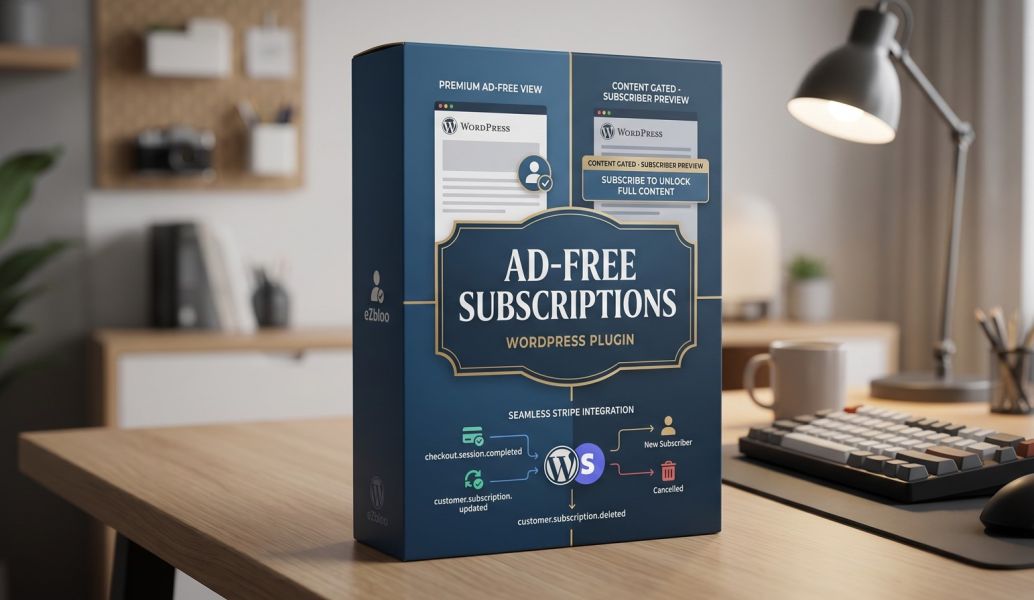
Ad-Free Subscriptions: Monetize Your Content With Ease
This plugin does two things perfectly: it hides ads for your supporters and lets you show a
VisitComplete Setup Instructions
Ad-Free Subscriptions - Stripe Webhook Setup Instructions
=========================================================
These steps connect Stripe to the WordPress plugin so subscription changes stay updated on your website.
What the webhook does
---------------------
The webhook tells WordPress when a Stripe subscription is created, updated, canceled, or set to cancel at the end of the billing period.
This is important because users can make changes inside Stripe, and Stripe needs a way to notify your website.
Before you start
----------------
You need:
1. An active Stripe account.
2. This WordPress plugin activated.
3. Your website available on HTTPS.
4. Your Stripe secret key and Price ID already saved in:
WordPress Admin > Settings > Ad-Free Subscriptions
Stripe requires a public HTTPS URL for live webhooks. Localhost and plain HTTP are not suitable for live mode.
Step 1 - Find your webhook URL in WordPress
-------------------------------------------
1. Log in to WordPress as an administrator.
2. Go to:
Settings > Ad-Free Subscriptions
3. Find the line labeled:
Webhook endpoint
4. Copy the full webhook URL.
It will look similar to this:
https://yourdomain.com/wp-json/afs/v1/stripe-webhook
Use your real domain, not the example above.
Step 2 - Open webhooks in Stripe
--------------------------------
1. Log in to Stripe:
https://dashboard.stripe.com
2. Make sure you are in the correct mode:
Test mode - for testing with test keys
Live mode - for real payments with live keys
3. Go to:
Developers / Workbench > Webhooks
Stripe may call this area "Workbench" or "Developers" depending on your account view.
Step 3 - Create the webhook endpoint
------------------------------------
1. Click:
Create an event destination
2. Choose to listen to events from:
Your account
Do not choose Connected accounts unless you are using Stripe Connect.
3. Choose:
Webhook endpoint
4. Paste the webhook URL from WordPress into the Endpoint URL field.
Example:
https://yourdomain.com/wp-json/afs/v1/stripe-webhook
5. Add a description if Stripe asks for one.
Example:
Ad-Free Subscriptions WordPress Plugin
Step 4 - Select the events
--------------------------
Select these events:
checkout.session.completed
customer.subscription.created
customer.subscription.updated
customer.subscription.deleted
These are the events this plugin uses.
What each event is for:
checkout.session.completed
Marks the WordPress user active after Stripe Checkout is completed.
customer.subscription.created
Records a new subscription.
customer.subscription.updated
Updates active, canceling, trialing, or past due subscription status.
customer.subscription.deleted
Marks the subscription canceled when Stripe cancels it.
Step 5 - Save the webhook endpoint
----------------------------------
Click the button in Stripe to create/save the endpoint.
After saving, Stripe will show the webhook endpoint details.
Step 6 - Copy the webhook signing secret
----------------------------------------
1. Open the webhook endpoint you just created.
2. Look for the signing secret.
3. Click to reveal it.
4. Copy the value.
The signing secret starts with:
whsec_
Important:
The webhook signing secret is not the same as your Stripe secret key.
Your Stripe secret key usually starts with:
sk_live_
Your webhook signing secret starts with:
whsec_
Step 7 - Save the webhook signing secret in WordPress
-----------------------------------------------------
1. Go back to WordPress.
2. Go to:
Settings > Ad-Free Subscriptions
3. Paste the whsec_ value into:
Stripe webhook signing secret
4. Click:
Save Changes
Step 8 - Test the setup
-----------------------
Simple test:
1. Log in to your website as a normal user.
2. Start a subscription using the plugin prompt.
3. Complete Stripe Checkout.
4. Go back to WordPress Admin.
5. Go to:
Users > Subscription Stats
6. Confirm the user appears as Active.
Cancel/reactivation test:
1. Create a WordPress page called something like:
My Subscription
2. Add this shortcode to the page:
[ad_free_subscription_account]
3. View that page while logged in as a subscribed user.
4. Click Cancel subscription.
5. Check:
Users > Subscription Stats
6. The user should show as Canceling.
7. Go back to the My Subscription page.
8. Click Reactivate subscription.
9. The user should return to Active.
Recommended Stripe webhook retry check
--------------------------------------
In Stripe, open the webhook endpoint and look at recent event deliveries.
A successful webhook delivery should show a 2xx response, usually 200.
If Stripe shows failed deliveries, open the failed event and read the error message.
Common problems
---------------
Problem:
Stripe says the endpoint URL is invalid.
Fix:
Make sure the URL starts with https:// and points to your real website.
Problem:
The webhook signing secret does not save or subscriptions do not update.
Fix:
Make sure you copied the whsec_ value from the exact webhook endpoint you created.
Problem:
Test payments work, but live payments do not.
Fix:
Stripe test mode and live mode have separate keys, prices, and webhook secrets.
For live mode, use live keys, a live Price ID, and a live webhook signing secret.
Problem:
The user paid, but WordPress does not show them as active.
Fix:
Check that the Stripe Checkout was started while the user was logged in to WordPress.
The plugin connects the Stripe subscription to the logged-in WordPress user.
Problem:
The webhook delivery fails with a 404.
Fix:
Go to WordPress Admin > Settings > Permalinks and click Save Changes.
Then try again.
Security notes
--------------
Keep these private:
sk_live_...
whsec_...
Do not place them inside posts, pages, public documentation, screenshots, or emails unless you trust the recipient.
If a key or webhook secret is exposed, rotate it in Stripe and update the plugin settings.
Official Stripe documentation
-----------------------------
Stripe webhook setup:
https://docs.stripe.com/webhooks/configure
Stripe webhook signature troubleshooting:
https://docs.stripe.com/webhooks/signature
Join the Discussion
Create an account or sign in to leave a comment.