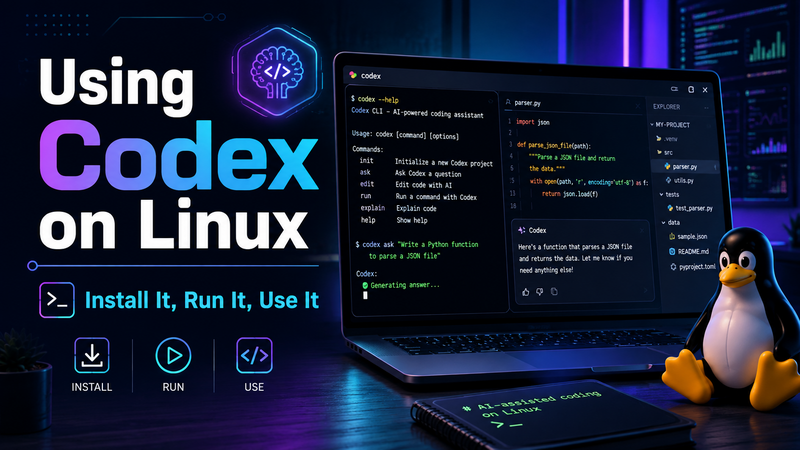
If you use Linux for web development, programming, or server administration, you may be wondering whether OpenAI's Codex can work directly from your Linux #terminal. The answer is yes.
Codex CLI runs locally from your terminal and can inspect your projects, read and edit files, run commands, help diagnose errors, review code, and perform many of the repetitive tasks that normally consume a developer's time.
You do not need to dual boot into Windows or run Codex inside a virtual machine. OpenAI provides a standalone installer for Linux, making installation fairly straightforward.
What Is Codex CLI?
Codex CLI is OpenAI's command-line coding agent. Instead of copying code back and forth between a browser and your text editor, you can launch Codex directly inside a project directory.
Because Codex is working inside the project, it can examine the actual files and directory structure rather than depending entirely on code snippets that you paste into a chat.
For example, Codex can help you:
- Understand an unfamiliar codebase.
- Explain PHP, JavaScript, Python, SQL, or other code.
- Find bugs.
- Modify existing files.
- Create new files.
- Write tests.
- Run development tools already installed on your Linux system.
- Review changes before you commit them.
- Analyze screenshots and other images.
- Perform non-interactive tasks from scripts or CI systems.
Installing Codex CLI on Linux
OpenAI currently provides a standalone installer for Linux and macOS.
Open your terminal and run:
curl -fsSL https://chatgpt.com/codex/install.sh | shOnce installation is complete, check that Codex is available:
codex --versionIf the command returns the installed Codex version, you are ready to continue.
Updating Codex
The standalone installer can also be used to update Codex:
curl -fsSL https://chatgpt.com/codex/install.sh | shBecause Codex is under active development, keeping the CLI updated is a good idea.
Starting Codex for the First Time
Codex is most useful when you start it from inside an actual project.
For example:
cd /path/to/your/project
codex
The first time you run Codex, it will walk you through authentication. One of the available methods is signing in with your ChatGPT account.
Codex availability and usage limits depend on your ChatGPT plan and workspace. OpenAI currently includes Codex access with a number of ChatGPT plans, with different usage allowances depending upon the plan.
You can also use API-based authentication for applicable workflows. API usage is billed separately from normal ChatGPT subscription usage.
Let Codex Examine Your Project
One of the best ways to learn Codex is to start with a project that you already understand.
Move into the project directory:
cd /var/www/example.comThen start Codex:
codexYou can then simply ask something such as:
Tell me about this project.Codex can inspect the project files and explain what it believes the application does.
You might also ask:
Explain how users are authenticated in this project.Or:
Find where database connections are created.Or:
Explain how this PHP application processes form submissions.This is one of the major advantages of running Codex from the terminal. Instead of continually copying individual files into a browser, Codex can work with the project itself.
Create an AGENTS.md File
One of the first Codex commands worth learning is:
/initThe /init command creates an AGENTS.md file containing instructions that Codex can use when working with the project.
This can be extremely useful because every development project has its own rules.
For example, your project may require:
- PHP 8 compatibility.
- MySQL instead of another database system.
- Bootstrap for interface components.
- Existing application functions to be reused instead of duplicated.
- Prepared SQL statements.
- A particular directory structure.
- No third-party dependencies without approval.
- Specific testing procedures before code is considered complete.
Those kinds of project instructions can be placed in AGENTS.md so Codex has persistent guidance while working in that repository.
Useful Codex Commands
Codex has several interactive commands worth knowing.
/init
Creates an AGENTS.md file with project instructions for Codex.
/init/status
Displays information about the current Codex session and configuration.
/statusThis is useful when you want to know what model, permissions, or other settings are currently being used.
/permissions
Allows you to control what Codex is permitted to do.
/permissionsThis is an important command. Before allowing an AI coding agent to make substantial changes, you should understand what access you are giving it.
/model
Allows you to select the model and reasoning level used for your current work.
/modelA routine task may not require the same model or reasoning effort as debugging a complicated application architecture.
/review
Asks Codex to review code changes and look for problems.
/reviewCode review is particularly useful before committing a significant change.
Use Git Before Making Large Changes
Before allowing Codex to perform substantial work on a project, make sure the project is under version control.
For example:
git statusIf necessary, commit your current work before beginning a major Codex task.
git add .
git commit -m "Checkpoint before Codex changes"
This gives you a clean point to return to if a proposed change does not work as expected.
AI coding tools can make substantial changes very quickly. That is useful when they are correct, but it also means developers should maintain a reliable method of reverting unwanted changes.
Give Codex a Task From the Command Line
You do not always have to start Codex and then type your request. You can provide the initial instruction directly from your shell.
For example:
codex "Explain how this application works"Or:
codex "Find the cause of the login error"Or:
codex "Review the database code for SQL injection vulnerabilities"The more specific your instructions are, the easier it is for Codex to understand the desired outcome.
Codex Can Work With Screenshots
Sometimes an application problem is easier to show than describe. Codex CLI can receive image input.
For example:
codex --image screenshot.png "Find the layout problem shown in this screenshot"This can be useful for:
- Broken website layouts.
- Error dialogs.
- Mobile responsive problems.
- UI comparisons.
- Design references.
- Architecture diagrams.
You can also use the shorter image option:
codex -i screenshot.png "Fix the problem shown here"Codex Can Search the Web
For tasks that depend on current documentation or other information from the web, Codex CLI can be started with web search enabled:
codex --searchThis is useful when a coding task depends on current library documentation, recent software releases, or other information that may have changed.
As with any information retrieved from the internet, developers should still verify important technical decisions rather than assuming every external source is correct.
Resume a Previous Codex Session
Codex can save sessions so that you do not necessarily have to start over every time you close the terminal.
To return to a previous session, use:
codex resumeThis is particularly useful when working on a project over multiple development sessions.
Running Codex Without the Interactive Interface
Codex also supports non-interactive operation through codex exec.
For example:
codex exec "summarize the repository structure"This allows Codex to perform a task and return the result without opening the normal interactive terminal interface.
This feature is useful for:
- Shell scripts.
- CI/CD pipelines.
- Automated code checks.
- Scheduled development tasks.
- Generating reports.
- Processing command output.
Using Codex Exec Safely
By default, codex exec uses a read-only sandbox. If a task needs permission to modify files, you can explicitly allow workspace writes:
codex exec --sandbox workspace-write "your task here"This gives Codex permission to make changes within the workspace while retaining sandbox protections.
There is also a broader permission mode:
codex exec --sandbox danger-full-access "your task here"Do not use danger-full-access casually.
OpenAI recommends using broader access only in controlled environments, such as an isolated CI runner or container.
The general security principle is simple: give Codex only the permissions necessary to complete the task.
Understanding the Codex Sandbox
Codex does not normally receive unrestricted access to your entire Linux computer.
The CLI uses sandboxing and approval controls to limit what generated commands can do.
On Linux, Codex currently uses operating-system-level isolation mechanisms including bwrap and seccomp.
In the standard workspace-write configuration, Codex can normally work within the active project while access outside the workspace and network access remain restricted unless additional permission is granted.
You can inspect or change these boundaries from an interactive session with:
/permissionsFor normal development work, leaving the sandbox enabled is generally the sensible choice.
Network Access Is Restricted by Default
One important security feature is that commands executed by Codex do not automatically receive unrestricted network access.
This helps reduce the possibility that generated code or commands can unexpectedly communicate with outside services.
Network permissions can be configured when required, but they should be granted deliberately rather than automatically.
Machine-Readable Output With Codex Exec
Codex can produce JSON Lines output for use by scripts and other programs.
codex exec --json "summarize the repository structure"This is particularly useful when another program needs to process Codex output automatically.
You can also save the final response to a file:
codex exec --output-last-message result.md "create a technical summary of this project"The shorter form is:
codex exec -o result.md "create a technical summary of this project"Run an Ephemeral Task
If you do not want Codex to preserve the session rollout files for a particular non-interactive task, use:
codex exec --ephemeral "analyze this project and suggest improvements"This is useful for one-time jobs where retaining the session is unnecessary.
Codex Works Well With Existing Linux Development Tools
One of the strengths of Codex CLI is that it works in the same development environment you already use.
If your Linux machine already has tools such as:
- PHP
- Composer
- MySQL
- MariaDB
- Node.js
- npm
- Git
- Python
- Apache
- Nginx
- Docker
Codex can potentially use those tools while working on the project, subject to the permissions and sandbox configuration you have selected.
For example, you could ask:
Run the PHP syntax checker against the PHP files you changed.Or:
Run the project's tests and fix the failures caused by your changes.Or:
Inspect the Composer configuration and tell me whether any dependencies need attention.Do Not Start With Your Most Important Production Server
There is a learning curve with any tool capable of modifying an entire codebase.
A good first experiment is to make a copy of an existing project that you already understand.
Then:
- Make sure the project is backed up or committed to Git.
- Open the project directory in your terminal.
- Start Codex.
- Run
/initand establish project instructions. - Ask Codex to explain the application.
- Give it a small programming task.
- Review the proposed changes.
- Run the application tests.
- Check the result yourself before committing anything.
This lets you learn how Codex behaves without exposing an important production application to unnecessary risk.
Codex Is an Assistant, Not a Replacement for Version Control
One of the easiest mistakes developers can make with AI coding agents is trusting generated changes simply because the code looks convincing.
Codex can work extremely quickly, but the developer remains responsible for the application.
You should still:
- Use Git.
- Maintain backups.
- Review important diffs.
- Test changes.
- Protect production credentials.
- Keep database backups.
- Avoid exposing secrets unnecessarily.
- Use the minimum required permissions.
Think of Codex as a developer working beside you rather than a magic button that eliminates the need to understand your own application.
Some Good First Tasks
If you are new to Codex, here are several useful tasks that are relatively easy to verify.
Explain a Project
Explain the architecture of this project. Tell me where requests enter the application, how the database is accessed, and how pages are rendered.Find Duplicate Code
Look through this project for duplicated functionality that should probably be placed into shared functions.Review Database Queries
Review the database queries in this project for SQL injection risks and improper escaping. Do not change anything yet. Give me a report first.Review PHP
Review this project for PHP errors, deprecated features, and obvious compatibility problems. Do not modify files until you explain what you found.Inspect Security
Review the authentication and authorization code. Look for places where a user could access data or functions without proper permission.Create Tests
Examine this project and recommend the most important areas that should have automated tests. Explain your recommendations before creating files.Notice the wording in several of these examples: do not change anything yet and explain what you found first.
That is often a useful way to work with an AI coding agent. Let it investigate first, discuss the proposed solution with you, and then authorize the changes.
A Better Way to Prompt Codex
Instead of giving Codex a vague instruction such as:
Fix my website.Give it the same kind of information that you would give another developer.
For example:
Users are occasionally being logged out while submitting this form. Trace the authentication and session handling involved in this request. Find the likely cause, explain it to me, and propose a fix. Do not modify any files until I approve the plan.The second prompt tells Codex:
- What the problem is.
- Where to investigate.
- What result you want.
- That you want an explanation.
- That you do not yet authorize modifications.
Clear instructions usually produce better development work, whether you are talking to an AI coding agent or another programmer.
Final Thoughts
For Linux developers, Codex CLI is one of the more interesting ways to use AI for programming because it brings the AI directly into the environment where the work is actually being performed.
You can open a terminal, enter a project, launch Codex, and let it inspect the same files, code, Git repository, and development tools that you use.
Start conservatively. Keep your project under version control, use the sandbox, review changes, and gradually give Codex more responsibility as you learn what it can and cannot do reliably.
To see the Codex version installed on your machine:
codex --versionTo see currently available command-line options:
codex --helpBecause Codex is actively developed, commands and capabilities can change over time. When something differs from this tutorial, the current Codex help output and OpenAI's official Codex documentation should be treated as the authoritative source.
Join the Discussion
Create an account or sign in to leave a comment.