If you manage WordPress sites at the server level, wp-cli is an absolute lifesaver. Being able to update WordPress core, databases, plugins, and themes with a few quick commands is incredibly efficient. But what happens when the terminal throws errors, and updates refuse to run?
Recently, while running a routine site update via the command line, I ran into a very specific—and slightly confusing—string of errors. If you’ve ever seen your plugin updates fail because WordPress thinks a newer version is actually older, this post is for you.
The Scenario: A Routine Update Gone Wrong
I started by running my standard update commands:
wp core update && wp core update-db
wp plugin update --all
wp theme update --all
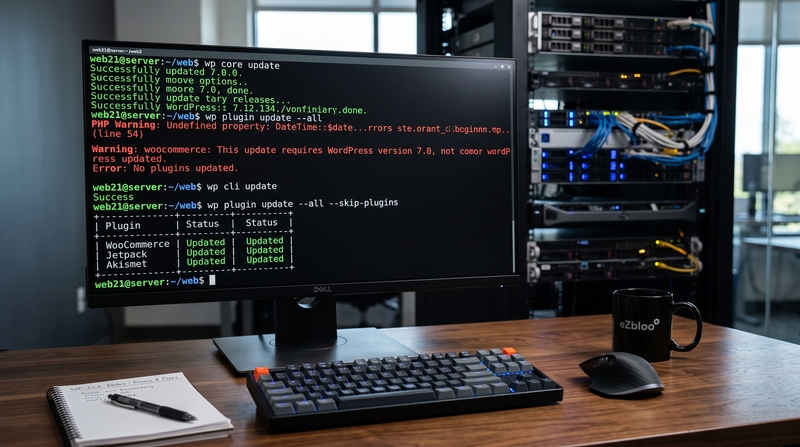
The core update went smoothly, upgrading the site to WordPress 7.1.2. The themes (all 9 of them) updated perfectly. But the plugins threw a wall of errors that looked like this:
PHP Warning: Undefined property: DateTime::$date in /.../plugins/exportfeed-for-woocommerce-product-to-etsy/core/classes/etsy-upload.php on line 54
Warning: woocommerce: This update requires WordPress version 7.0, but the version installed is 7.1.2.
Warning: woocommerce-services: This update requires WordPress version 7.0, but the version installed is 7.1.2.
Error: No plugins updated.
There are actually two separate issues happening here. Let’s break them down and fix them.
Issue 1: The Chatty PHP Warning
The first error in the output is a PHP warning originating from a specific third-party plugin (in this case, an Etsy export plugin for WooCommerce).
The Cause: With newer, stricter versions of PHP (8.0+), trying to incorrectly access a property on a PHP DateTime object throws a warning instead of being quietly ignored. Because WP-CLI loads your site's environment to run, this plugin's minor bug is printing right into our terminal.
The Fix: While this doesn't stop updates from happening, it clutters the terminal. Until the plugin developer releases a patch, you can tell WP-CLI to ignore plugins while executing commands by adding the --skip-plugins flag:
wp theme update --all --skip-pluginsIssue 2: The Version Comparison Glitch
The second error is the real blocker: "This update requires WordPress version 7.0, but the version installed is 7.1.2."
Wait, isn't 7.1.2 higher than 7.0? Yes, it is.
The Cause: This is a known version-comparison glitch. Sometimes, WP-CLI's internal logic struggles to parse newer WordPress version numbering schemes properly. It treats 7.1.2 as if it doesn't meet the minimum 7.0 threshold, aggressively blocking your WooCommerce updates to "protect" your site.
How to Fix the Plugin Update Failure
If you run into this WP-CLI version glitch, here are the three best ways to get your plugins updated.
Option A: Update WP-CLI (Recommended)
Because this is usually a parsing error within WP-CLI itself, updating the command-line tool will often resolve the math glitch.
sudo wp cli update
wp plugin update --all --skip-plugins
Option B: Force the Update
If WP-CLI is still being stubborn and you want to stay in the terminal, you can force it to overwrite the plugin files anyway. (Note: Make sure you have a backup before forcing installations!)
wp plugin update woocommerce woocommerce-services --forceOption C: Use the WordPress Admin Dashboard
The WordPress web UI uses a slightly different set of core files to check version requirements. If the terminal is fighting you, simply log into your wp-admin, navigate to Dashboard > Updates, and click update. The web dashboard will almost always correctly recognize that WP 7.1.2 is fully compatible with the 7.0 requirement.
Have you run into weird WP-CLI glitches lately? Let me know in the comments how you handled them!
Join the Discussion
Create an account or sign in to leave a comment.