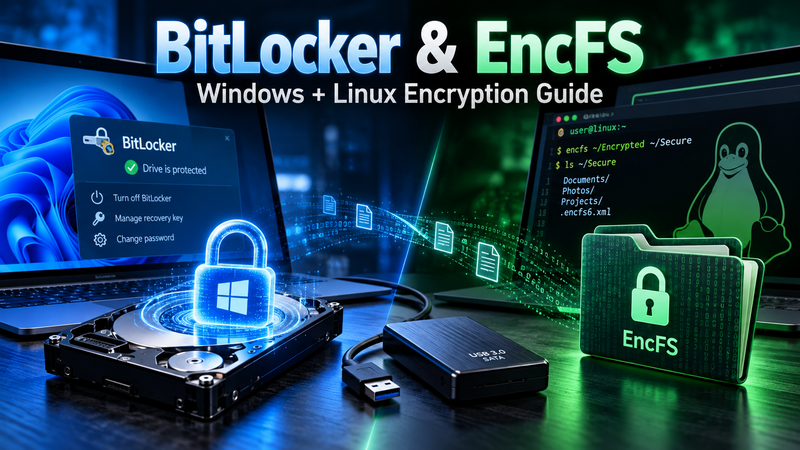
Encryption is one of the best protections you can use for computers, external hard drives, USB drives, backups, and sensitive files.
This tutorial covers three practical situations:
Encrypting Windows drives with Microsoft BitLocker.
Unlocking and accessing BitLocker drives from Linux.
Encrypting individual directories on Linux with EncFS.
These technologies solve slightly different problems.
BitLocker encrypts an entire disk or partition. If someone steals the drive, they cannot normally inspect the files without the password, recovery key, or another configured protector.
EncFS creates an encrypted directory containing encrypted versions of individual files. When the encrypted filesystem is mounted, Linux presents another directory containing the decrypted files.
Part 1 — Understanding BitLocker
BitLocker is Microsoft's full-volume encryption system.
It can be used on:
The Windows operating-system drive.
Internal secondary hard drives.
SSDs.
External hard drives.
USB flash drives.
Windows also refers to encryption of removable media as BitLocker To Go.
Full BitLocker Drive Encryption management is available on Windows Pro, Enterprise, and Education editions. Windows also provides a simpler Device Encryption feature on supported systems, including many Windows Home systems.
A BitLocker-encrypted drive may be protected using mechanisms such as:
TPM
Password
PIN
Recovery key
USB startup key
The most important emergency credential is the 48-digit BitLocker recovery key. Microsoft cannot reconstruct a lost recovery key for you.
Part 2 — Encrypting the Windows System Drive
Before enabling BitLocker, make sure important files have been backed up.
Encryption should never be considered a substitute for backups.
Using the Windows interface
Open:
Control Panel → System and Security → BitLocker Drive Encryption
Find:
Operating system drive
C:
Click:
Turn on BitLockerWindows will inspect the computer and determine which protection methods are available.
On modern systems, the TPM normally participates in automatically unlocking the operating-system drive during a normal trusted boot.
Windows will then ask you to back up the recovery key.
Possible locations include:
Microsoft account
Microsoft Entra/work account
USB drive
Another file location
Printed copy
Microsoft specifically recommends keeping the recovery key somewhere other than the encrypted computer itself.
Save the recovery key
This step should not be skipped.
A BitLocker recovery key looks similar to:
123456-123456-123456-123456-123456-123456-123456-123456That is a 48-digit numerical recovery password.
Do not store the only copy of this key on the drive it unlocks.
A good arrangement would be:
Computer
    BitLocker encrypted

USB backup
    Recovery key

Secure offline location
    Second recovery-key copy
You can also retain the key in your Microsoft account if that is appropriate for your environment.
Part 3 — Encrypting an External Drive with BitLocker
External drives are particularly good candidates for encryption because they are easy to lose or steal.
Connect the drive.
Open File Explorer.
Right-click the drive and select:
Turn on BitLockerFor an external data drive, Windows may offer:
Use a password to unlock the driveEnter a strong password.
For example, do not use:
password123A long passphrase is substantially better.
Conceptually:
Correct-Horse-Battery-Example-8472Do not use that literal example.
Then save the recovery key.
Windows will normally ask whether you want to encrypt:
Encrypt used disk space onlyor:
Encrypt entire driveUsed disk space only
Good for a brand-new empty drive.
It is generally faster.
Entire drive
Better for a drive that has previously contained data.
This ensures unused sectors are also processed instead of only encrypting currently allocated data.
For an old drive containing sensitive information, I would choose:
Encrypt entire driveContinue through the wizard and start encryption.
Do not disconnect the drive while encryption is taking place.
Part 4 — Managing BitLocker from the Windows Command Line
Windows includes the manage-bde utility.
Open Command Prompt or PowerShell as Administrator.
Check BitLocker status
manage-bde -statusFor only drive C:
manage-bde -status C:You may see information such as:
Conversion Status
Percentage Encrypted
Encryption Method
Protection Status
Lock Status
Identification Field
Key Protectors
This is one of the first commands I recommend when troubleshooting BitLocker.
Part 5 — Turning BitLocker On from the Command Line
Microsoft documents manage-bde for enabling BitLocker.
For example:
manage-bde -on C:BitLocker can also be managed through PowerShell.
For example:
Enable-BitLocker C: -TpmProtectorOn production systems, however, make sure you understand your recovery-key configuration before enabling encryption through automation.
Part 6 — Viewing BitLocker Protectors
Run:
manage-bde -protectors -get C:You might see something resembling:
TPM:
    ID: {...}

Numerical Password:
    ID: {...}
    Password:
    123456-123456-...
That numerical password is the recovery key.
Treat it like a password.
Anyone possessing that recovery key may potentially unlock the volume.
Part 7 — Locking and Unlocking a BitLocker Data Drive in Windows
Suppose the BitLocker drive is:
E:Unlock with a password:
manage-bde -unlock E: -passwordWindows will prompt for the password.
Or unlock with the recovery password:
manage-bde -unlock E: -RecoveryPassword YOUR-48-DIGIT-RECOVERY-KEYDo not put a real recovery key into screenshots, public tutorials, shell histories, tickets, or online posts.
Part 8 — Decrypting a BitLocker Drive
To permanently remove BitLocker encryption from a volume:
manage-bde -off E:Check progress with:
manage-bde -status E:Do not confuse unlocking with decrypting.
Unlocking means:
Encrypted drive → temporarily accessibleDecrypting means:
Encrypted drive → permanently converted back to unencrypted storagePart 9 — Reading a BitLocker Drive from Linux
Modern versions of cryptsetup can directly open BitLocker volumes.
This is preferable to many older tutorials that immediately tell you to install dislocker.
Cryptsetup's BitLocker implementation supports BitLocker and BitLocker To Go volumes. It can unlock them using a password, recovery password, startup key, or volume key. TPM and Smart Card unlocking are not supported through this Linux mechanism.
On current Ubuntu releases, including Ubuntu 26.04 LTS, cryptsetup is available through the package repositories.
Part 10 — Install Cryptsetup
On Ubuntu, Linux Mint, Debian and related distributions:
sudo apt update
sudo apt install cryptsetup
Check the installed version:
cryptsetup --versionPart 11 — Find the BitLocker Drive
Connect the Windows disk or USB drive.
Run:
lsblk -fYou may see something similar to:
NAME   FSTYPE LABEL      SIZE
sda                       1T
├─sda1 vfat              100M
├─sda2                   16M
├─sda3 BitLocker        930G
└─sda4 ntfs              800M

sdb                     500G
└─sdb1 ext4             500G
Your BitLocker partition could therefore be:
/dev/sda3Do not blindly copy /dev/sda3.
Determine the correct device on your own machine first.
Commands that help include:
lsblklsblk -fsudo fdisk -lPart 12 — Inspect the BitLocker Header
Cryptsetup provides a BitLocker information command.
For example:
sudo cryptsetup bitlkDump /dev/sda3Cryptsetup documents bitlkDump specifically for examining BitLocker metadata.
If the partition is recognized correctly, this confirms you are dealing with a BitLocker volume.
Part 13 — Unlock BitLocker from Linux
Create a mapping named:
windowsRun:
sudo cryptsetup open --type bitlk /dev/sda3 windowsCryptsetup will ask for a credential.
Depending on how the BitLocker volume was configured, you may use:
BitLocker password
48-digit BitLocker recovery password
Appropriate supported key
The canonical modern syntax is:
cryptsetup open --type bitlk DEVICE NAMEOnce successful, Linux creates:
/dev/mapper/windowsCheck it:
ls -l /dev/mapper/windowsPart 14 — Mount the Unlocked Windows Filesystem
Create a mount directory:
sudo mkdir -p /mnt/windowsNow mount the unlocked filesystem:
sudo mount /dev/mapper/windows /mnt/windowsLook inside:
ls -lah /mnt/windowsFor a normal Windows system drive you should see directories such as:
Program Files
Program Files (x86)
Users
Windows
User files are normally under:
/mnt/windows/Users/USERNAME/For example:
ls -lah "/mnt/windows/Users/Maximus"Then:
ls -lah "/mnt/windows/Users/Maximus/Documents"Part 15 — Mount a BitLocker Drive Read-Only for Recovery
If your purpose is data recovery, reading an old drive, or investigating a potentially damaged filesystem, I strongly recommend initially mounting it read-only.
Open BitLocker read-only:
sudo cryptsetup open --readonly --type bitlk /dev/sda3 windowsThen:
sudo mkdir -p /mnt/windowsMount read-only:
sudo mount -o ro /dev/mapper/windows /mnt/windowsNow copy files from the drive to another disk.
Do not recover files back onto the drive being recovered.
This reduces the chance of changing filesystem metadata or overwriting recoverable data.
Part 16 — Correctly Unmounting BitLocker on Linux
When finished:
sudo umount /mnt/windowsThen close the BitLocker mapping:
sudo cryptsetup close windowsThe mapping:
/dev/mapper/windowsshould disappear.
Check:
ls /dev/mapper/Only after unmounting and closing the mapping should you disconnect the external drive.
The sequence is:
Files
  ↓
Mounted NTFS filesystem
  ↓
BitLocker mapper
  ↓
Physical disk
Therefore shutdown should happen in reverse:
Unmount filesystem
  ↓
Close BitLocker mapper
  ↓
Disconnect disk
Part 17 — Troubleshooting BitLocker on Linux
Error: Device or resource busy
If:
sudo cryptsetup close windowsreports that the device is busy, something is still using the mounted filesystem.
Check:
mount | grep windowsYou can also check which processes have files open:
sudo lsof +D /mnt/windowsThen unmount:
sudo umount /mnt/windowsand try:
sudo cryptsetup close windowsError: Wrong password
Make sure you distinguish between:
Windows account passwordand:
BitLocker passwordThey are not necessarily the same.
The 48-digit BitLocker recovery password is another credential entirely.
TPM-protected Windows drive
Linux cryptsetup does not simply ask the Windows computer's TPM to unlock the disk the same way Windows does.
Cryptsetup's BitLocker support does not provide TPM unlocking.
Therefore, when moving the disk to another computer, the BitLocker recovery key is extremely valuable.
Part 18 — Older BitLocker Linux Tutorials and Dislocker
Older tutorials commonly use:
dislockerDislocker was historically one of the standard ways to access BitLocker volumes from Linux.
The process usually looked like:
BitLocker partition
       ↓
Dislocker
       ↓
dislocker-file
       ↓
NTFS mount
Modern cryptsetup makes this extra layer unnecessary on many current Linux systems because BitLocker support is built directly into cryptsetup.
Therefore, my preferred order is:
1. Try cryptsetup
2. Use dislocker only when compatibility requires it
This also makes the procedure easier to understand and maintain.
Part 19 — What Is EncFS?
EncFS solves a different problem.
Instead of encrypting an entire disk, EncFS creates two directories.
For example:
/home/maximus/.encryptedand:
/home/maximus/PrivateThe .encrypted directory contains encrypted files.
The Private directory displays the decrypted versions while EncFS is mounted.
Conceptually:
~/.encrypted/
    A7sdf83ks...
    Pl30df9x...
    Fk39dk02...

          ↓ EncFS

~/Private/
    taxes.pdf
    passwords.txt
    customer-records/
EncFS encrypts both file contents and filenames.
Part 20 — Important EncFS Security Warning
This needs to be understood before using EncFS.
The version packaged by Ubuntu 26.04 is currently EncFS 1.9.5-3build1.
Legacy EncFS designs have known security weaknesses, particularly in threat models where an attacker can repeatedly inspect or modify encrypted files. Ubuntu and the EncFS project have historically documented these concerns.
The upstream EncFS project is working on newer V7 cryptographic improvements using stronger authentication and password derivation, but the standard Ubuntu package remains from the older 1.9.5 line.
For that reason:
EncFS is useful for learning, compatibility, and certain local-storage applications, but I would use LUKS or a modern authenticated file-encryption system for newly designed high-security storage.
That does not mean EncFS is useless. It means you should understand its threat model rather than treating all encryption software as equivalent.
Part 21 — Install EncFS on Linux
Ubuntu/Linux Mint:
sudo apt update
sudo apt install encfs
Verify:
encfs --versionYou can also read the manual:
man encfsPart 22 — Create an EncFS Encrypted Directory
We will create:
~/.encryptedfor encrypted storage and:
~/Privatefor the decrypted view.
Create them:
mkdir -p ~/.encrypted
mkdir -p ~/Private
Now run:
encfs ~/.encrypted ~/PrivateOn the first run, EncFS recognizes that no existing filesystem configuration exists and asks whether you want to create one.
You will then be asked to choose configuration options and create a password.
For ordinary use, prefer the strongest reasonable configuration offered by the installed EncFS implementation rather than deliberately weakening encryption settings.
After configuration, the filesystem is mounted.
Part 23 — Test EncFS
Create a test document:
echo "This is secret information." > ~/Private/test.txtRead it:
cat ~/Private/test.txtYou should see:
This is secret information.Now inspect the encrypted directory:
ls -lah ~/.encryptedInstead of:
test.txtyou should see an encrypted filename.
If you inspect the encrypted file directly:
cat ~/.encrypted/ENCRYPTED_FILENAMEyou should not see your original plaintext.
This demonstrates the relationship:
~/.encrypted
      encrypted storage

          ↓ EncFS

~/Private
      decrypted virtual filesystem
Part 24 — Store Files in EncFS
While EncFS is mounted, use:
~/Privatenormally.
For example:
cp ~/Documents/important.pdf ~/Private/Create directories:
mkdir ~/Private/ClientsMove files:
mv ~/Documents/customer-list.xlsx ~/Private/Clients/Applications can generally open and save files inside:
~/Privateas though it were an ordinary directory.
EncFS transparently handles encryption and decryption.
Part 25 — Unmount EncFS
When finished:
fusermount -u ~/PrivateThe EncFS documentation specifically describes using FUSE unmounting in this manner.
On newer systems, this command may also be available:
fusermount3 -u ~/PrivateYou can also use:
umount ~/Privatewhen appropriate.
After unmounting:
ls -lah ~/Privateshould no longer expose the decrypted files.
The encrypted files remain safely stored inside:
~/.encryptedPart 26 — Mount EncFS Again
Later, run:
encfs ~/.encrypted ~/PrivateEnter your EncFS password.
The decrypted files become visible again:
ls -lah ~/PrivateWhen finished:
fusermount -u ~/PrivatePart 27 — Change the EncFS Password
EncFS includes:
encfsctlFor example:
encfsctl passwd ~/.encryptedYou will normally be asked for the existing password and then the new password.
Changing the password does not require manually decrypting and re-encrypting every individual document because the password protects keying material used by the filesystem.
Part 28 — Backing Up EncFS
One convenient feature of a file-based encrypted filesystem is that the encrypted directory itself can be backed up.
For example:
rsync -av ~/.encrypted/ /media/maximus/Backup/encfs-backup/The backup receives encrypted filenames and encrypted contents.
This can be useful for:
External-drive backups
NAS storage
Remote server backups
Cloud synchronization
However, be careful to back up the EncFS configuration file as well.
Without the encryption metadata/configuration and password, recovering encrypted files may be impossible.
You should think of the encrypted directory as one complete unit.
Part 29 — Never Delete the EncFS Configuration File
Inside the encrypted directory you may see a configuration file such as:
.encfs6.xmlThat file is important.
Do not decide:
"I don't recognize this file, so I'll delete it."
The encryption configuration is necessary for interpreting the encrypted filesystem.
Your backup should include:
Encrypted files
Encrypted filenames
EncFS configuration
And separately you need:
PasswordPart 30 — Hidden EncFS Directory
The reason I use:
~/.encryptedinstead of:
~/encryptedis simply that a filename beginning with:
.is hidden by default on Linux.
You can reveal hidden files with:
ls -la ~This is not security.
A hidden directory is merely less visually prominent.
The encryption, not the leading dot, protects the files.
Part 31 — BitLocker vs EncFS
These tools are designed for different purposes.
BitLocker
Best when you want:
Entire Windows drive encryptedExamples:
Laptop
Desktop system drive
External HDD
External SSD
USB drive
Protection applies to the entire volume.
If someone removes the drive and attaches it to another computer, they should encounter an encrypted BitLocker volume instead of immediately seeing your files.
EncFS
Best when you specifically want:
Selected Linux directory encryptedwhile leaving the rest of the filesystem untouched.
Examples:
~/Private
~/CustomerFiles
~/Credentials
~/FinancialRecords
Only the contents of the EncFS filesystem are encrypted.
Part 32 — BitLocker vs LUKS vs EncFS
For Linux itself, there is another important technology:
LUKSLUKS is generally the Linux equivalent of what BitLocker does for Windows.
Think of the technologies this way:
Windows whole-drive encryption
        ↓
     BitLocker

Linux whole-drive encryption
        ↓
       LUKS

Linux directory-level encryption
        ↓
       EncFS
For a Linux laptop containing sensitive information, I would normally prefer:
LUKS full-disk encryptionrather than trying to encrypt every sensitive directory individually with EncFS.
EncFS can still be useful when you need a separate encrypted directory.
Part 33 — Example Real-World Setup
A practical mixed Windows/Linux environment could look like this.
Windows computer
System disk:
C:
BitLocker encrypted
External backup drive:
E:
BitLocker To Go encrypted
Recovery key:
Stored separatelyLinux computer
System disk:
LUKS encryptedSpecial encrypted directory:
~/Privateusing EncFS or another directory-level encryption system.
Recovery workstation
Linux can read a removed Windows BitLocker drive with:
cryptsetup open --readonly --type bitlk /dev/sdXN windowsfollowed by:
mount -o ro /dev/mapper/windows /mnt/windowsThat is particularly useful when a Windows computer fails but its encrypted hard drive remains intact.
Part 34 — Recovering Files from a Removed Windows BitLocker Drive
This is especially useful when connecting an old SATA drive through a SATA-to-USB adapter.
First identify the disk:
lsblk -fSuppose the BitLocker partition is:
/dev/sdb3Inspect it:
sudo cryptsetup bitlkDump /dev/sdb3Unlock read-only:
sudo cryptsetup open --readonly --type bitlk /dev/sdb3 oldwindowsCreate a mount directory:
sudo mkdir -p /mnt/oldwindowsMount:
sudo mount -o ro /dev/mapper/oldwindows /mnt/oldwindowsBrowse:
ls -lah /mnt/oldwindowsThen:
ls -lah /mnt/oldwindows/UsersFind the appropriate account:
ls -lah "/mnt/oldwindows/Users/USERNAME"Then inspect:
Desktop
Documents
Downloads
Pictures
Videos
OneDrive
Remember that modern Windows systems may redirect Desktop, Documents, and Pictures into OneDrive.
Therefore also check:
ls -lah "/mnt/oldwindows/Users/USERNAME/OneDrive"When finished:
sudo umount /mnt/oldwindowsand:
sudo cryptsetup close oldwindowsPart 35 — The Recovery Key Is Critical
A properly encrypted disk is specifically designed to resist unauthorized recovery.
Therefore this combination is extremely important:
Encrypted data
+
Recovery key
+
Backups
Encryption without a recovery strategy can turn a hardware failure or forgotten password into permanent data loss.
Keep at least two secure copies of important recovery keys.
For example:
Copy 1:
Password manager or protected account

Copy 2:
Offline physical copy stored securely
Avoid:
Recovery-Key.txtstored only on:
the encrypted drive it is supposed to recoverIf the drive cannot be unlocked, that recovery key becomes inaccessible at exactly the moment it is needed.
Part 36 — Encryption Does Not Replace Backups
Suppose you have a 2 TB BitLocker drive.
If the drive mechanically fails, BitLocker does not repair it.
If malware deletes files after the drive is unlocked, BitLocker does not restore them.
If you accidentally delete a directory, BitLocker does not provide a backup.
Encryption protects primarily against unauthorized disclosure.
Backups protect primarily against data loss.
You need both.
A sensible design is:
Computer
    ↓
Encrypted primary drive
    ↓
Encrypted backup
    ↓
Separate/off-site backup
Part 37 — Recommended Commands Cheat Sheet
Windows BitLocker status
manage-bde -statusBitLocker protectors
manage-bde -protectors -get C:Unlock data drive
manage-bde -unlock E: -passwordDecrypt drive
manage-bde -off E:Linux disk identification
lsblk -fInspect BitLocker
sudo cryptsetup bitlkDump /dev/sdXNUnlock BitLocker
sudo cryptsetup open --type bitlk /dev/sdXN windowsUnlock BitLocker read-only
sudo cryptsetup open --readonly --type bitlk /dev/sdXN windowsMount
sudo mkdir -p /mnt/windows
sudo mount /dev/mapper/windows /mnt/windows
Mount read-only
sudo mount -o ro /dev/mapper/windows /mnt/windowsUnmount
sudo umount /mnt/windowsClose BitLocker mapping
sudo cryptsetup close windowsCreate EncFS directories
mkdir -p ~/.encrypted
mkdir -p ~/Private
Create or mount EncFS
encfs ~/.encrypted ~/PrivateUnmount EncFS
fusermount -u ~/PrivateChange EncFS password
encfsctl passwd ~/.encryptedFinal Recommendations
If you are protecting an entire Windows computer or Windows external drive, use:
BitLockerIf you are protecting an entire Linux computer or Linux disk, use:
LUKSIf you need compatibility with an existing EncFS encrypted directory, EncFS remains useful.
For a brand-new high-security Linux directory-encryption deployment, however, I would evaluate newer authenticated-encryption alternatives rather than automatically choosing the legacy EncFS 1.9.5 implementation distributed by Ubuntu.
For recovering a BitLocker-encrypted Windows disk from Linux, the modern approach is particularly straightforward:
sudo cryptsetup open --readonly --type bitlk /dev/sdXN windows
sudo mkdir -p /mnt/windows
sudo mount -o ro /dev/mapper/windows /mnt/windows
When finished:
sudo umount /mnt/windows
sudo cryptsetup close windows
That gives Linux administrators a very useful recovery path when a Windows installation dies but its BitLocker-encrypted disk remains readable.
Join the Discussion
Create an account or sign in to leave a comment.